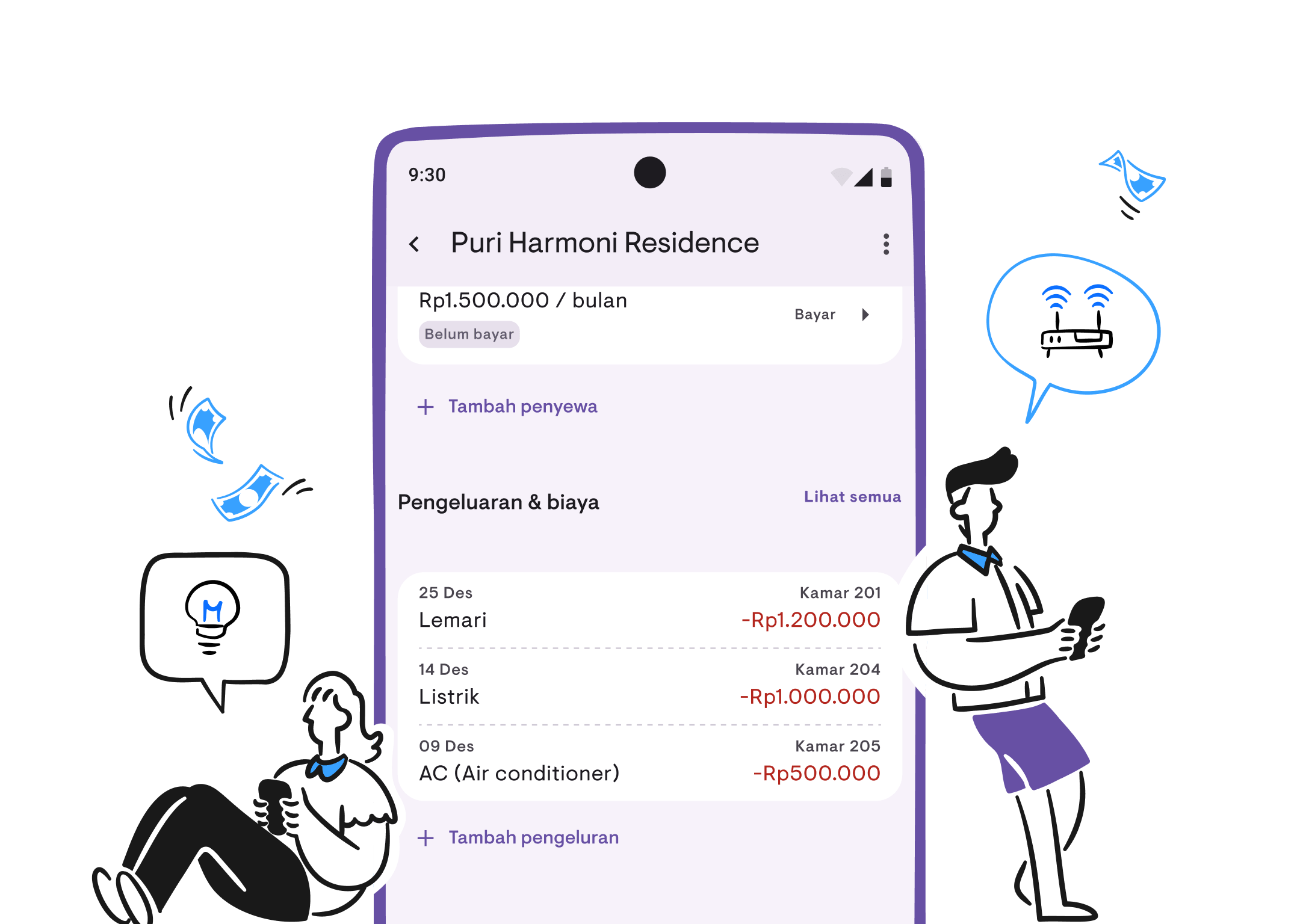
Expense tracking: complete user guide
Learn how to record property expenses, manage categories, and view expense reports in Kamaru.
Expense tracking helps you keep track of all property operating costs — from electricity and water to repairs and taxes. This guide will show you how to use each part of the expense feature.
Adding an expense
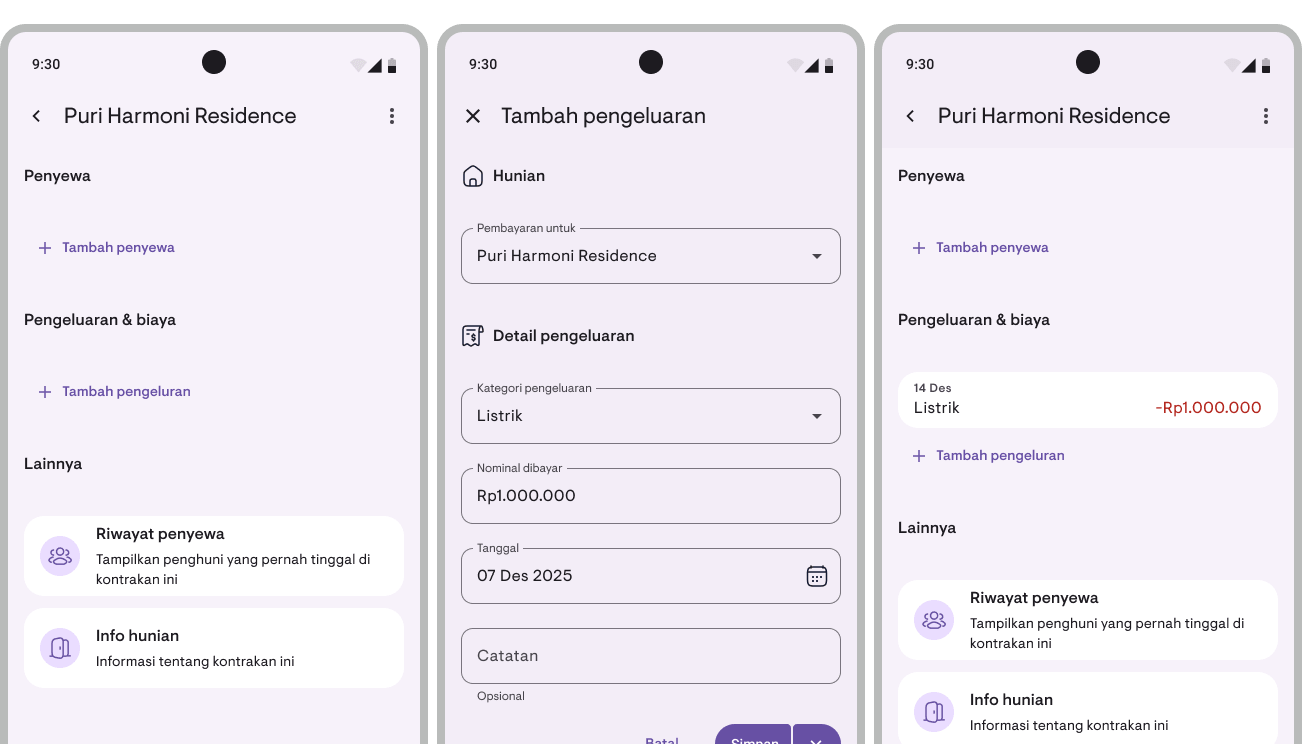
- Open a property or room page, then tap Add Expense in the expenses section
- Or open the expense list and tap the + button in the bottom right corner
- Fill in the expense form:
- Property (required) — Select a property from the dropdown
- Room (optional) — Appears only for properties with room-based systems. Select a specific room or “No Room” for property-level expenses
- Category (required) — Tap to open the category picker
- Amount (required) — Enter the expense amount
- Date — Defaults to today, can be changed up to 30 days ahead
- Notes (optional) — Add additional details
- Tap Save to save the expense
Save & Add Another
If you need to record multiple expenses at once:
- Tap the small arrow next to the Save button
- Select Save & Add Another
- The expense will be saved and the form will be cleared, ready for the next entry
Viewing expenses
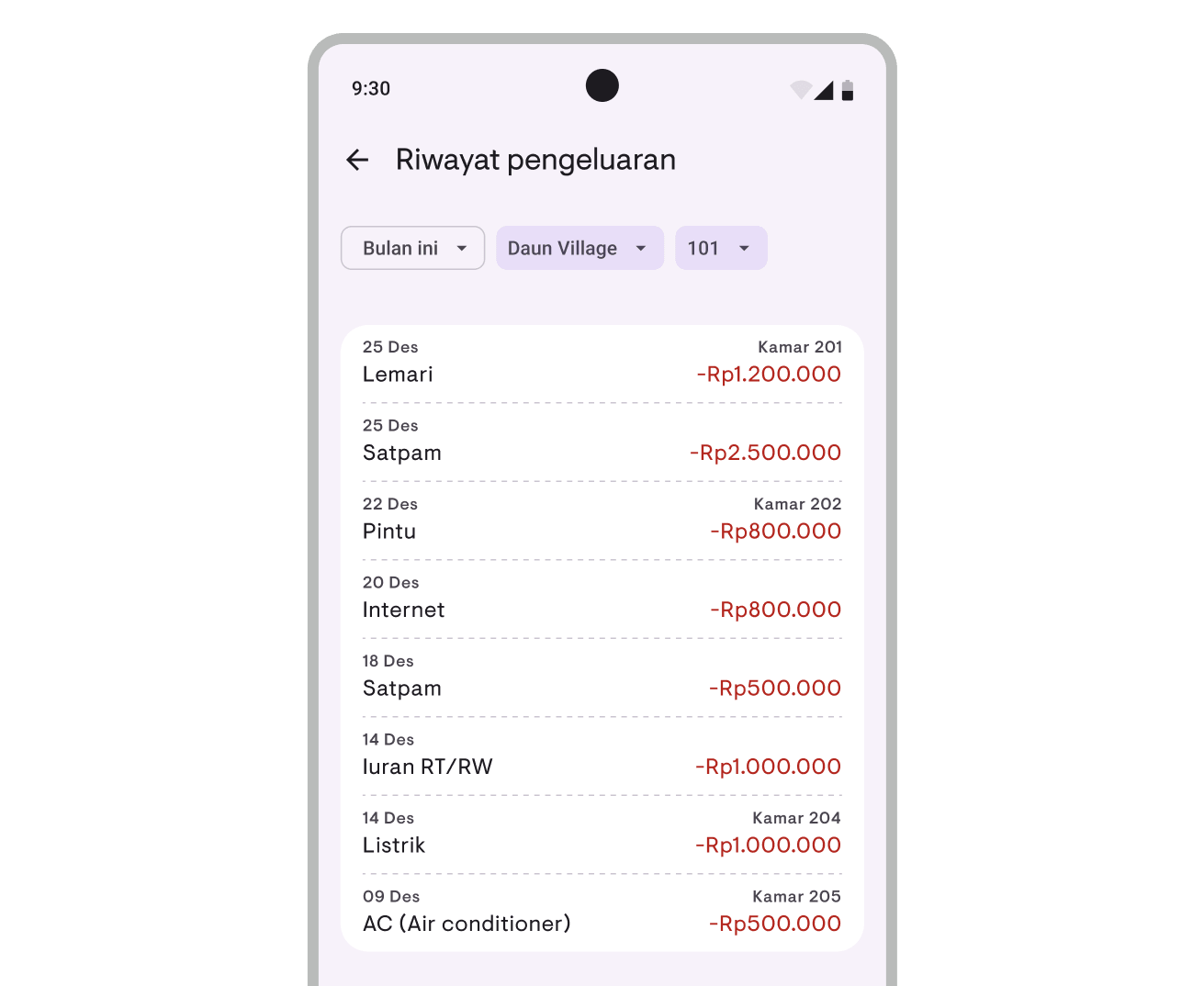
Expense list
- Open a property page, then tap View All in the expenses section
- The expense list shows all expenses with filters:
- Period — “This Month” (default), “3 Months”, “6 Months”, “1 Year”
- Property — “All Properties” or a specific property
- Room — “All Rooms” or a specific room (only appears for room-based properties)
Expenses on property and room pages
Property and room detail pages show up to 5 recent expenses in the expenses section. Tap View All to open the full list, or tap Add Expense to add a new expense.
Expense details
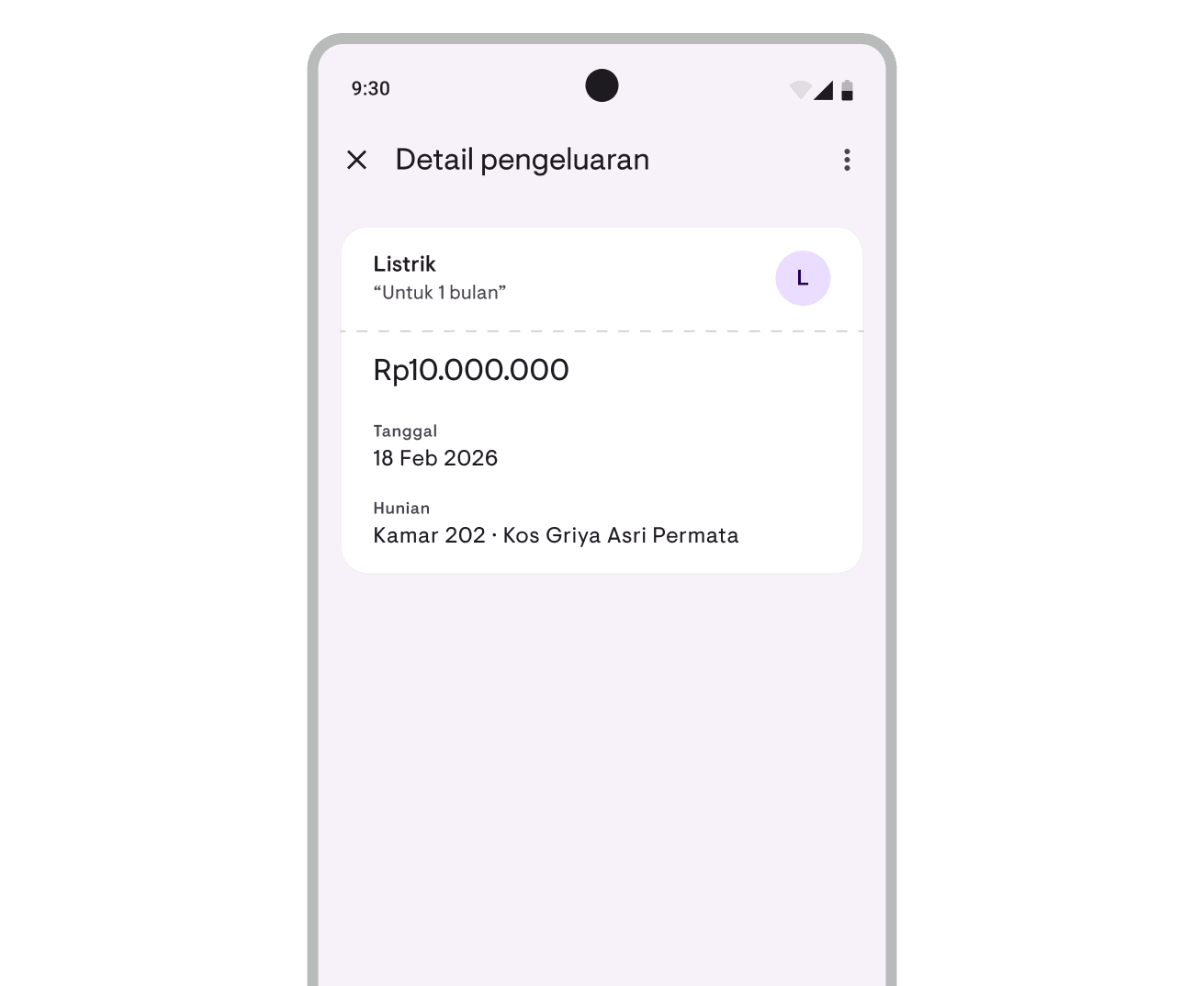
Tap an expense from the list to view full details:
- Category with avatar icon
- Expense amount
- Location (room and property)
- Date
- Notes (if any)
Editing an expense
- Open the expense details
- Tap the menu icon (three dots) in the top right corner
- Select Edit
- Make your changes and tap Save
Duplicating an expense
- Open the expense details
- Tap the menu icon → Duplicate
- The form will open with pre-filled data
- Adjust as needed and tap Save
Deleting an expense
- Open the expense details
- Tap the menu icon → Delete
- Confirm the deletion
You can also access Edit, Duplicate, and Delete by long-pressing an expense in the list.
Managing categories
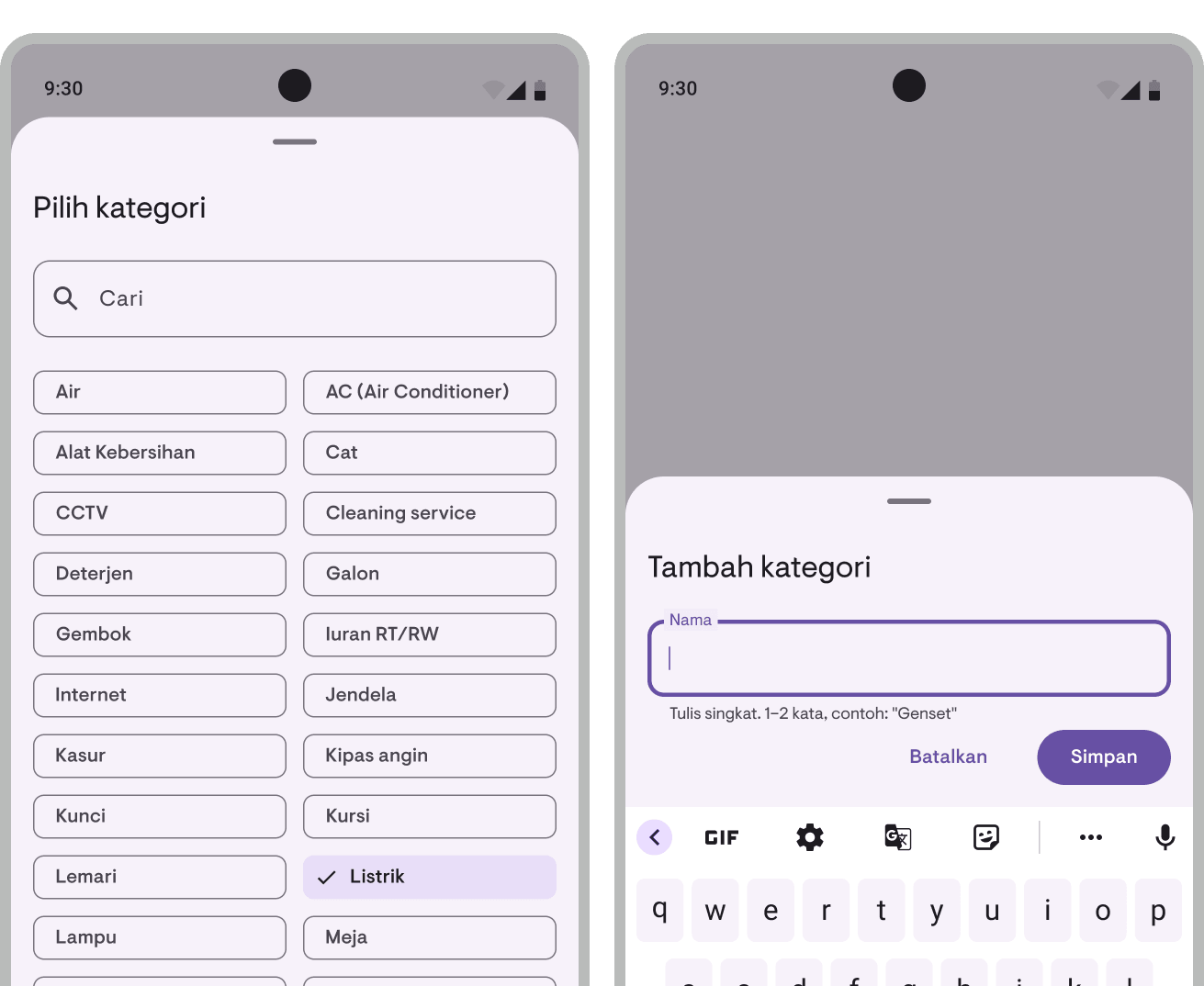
Built-in categories
Kamaru provides 30+ built-in categories commonly used by property owners, including: Water, AC, Electricity, Internet, Repairs, Paint, Labor, Taxes, and more.
Built-in categories cannot be deleted but can be used directly when adding expenses.
Adding a new category
- When adding an expense, tap the Category field
- In the category picker, tap Add Category
- Enter the new category name
- The new category will be automatically selected
Managing categories
- Go to Profile → Expense Categories
- You can:
- Rename — Tap the three-dot menu on a category → Rename
- Delete — Tap the three-dot menu → Delete (custom categories only)
- Deleting a category will change related expenses to “Uncategorized”
Viewing expense reports
Expenses you record will automatically appear in financial reports.
Total expenses in Report Overview
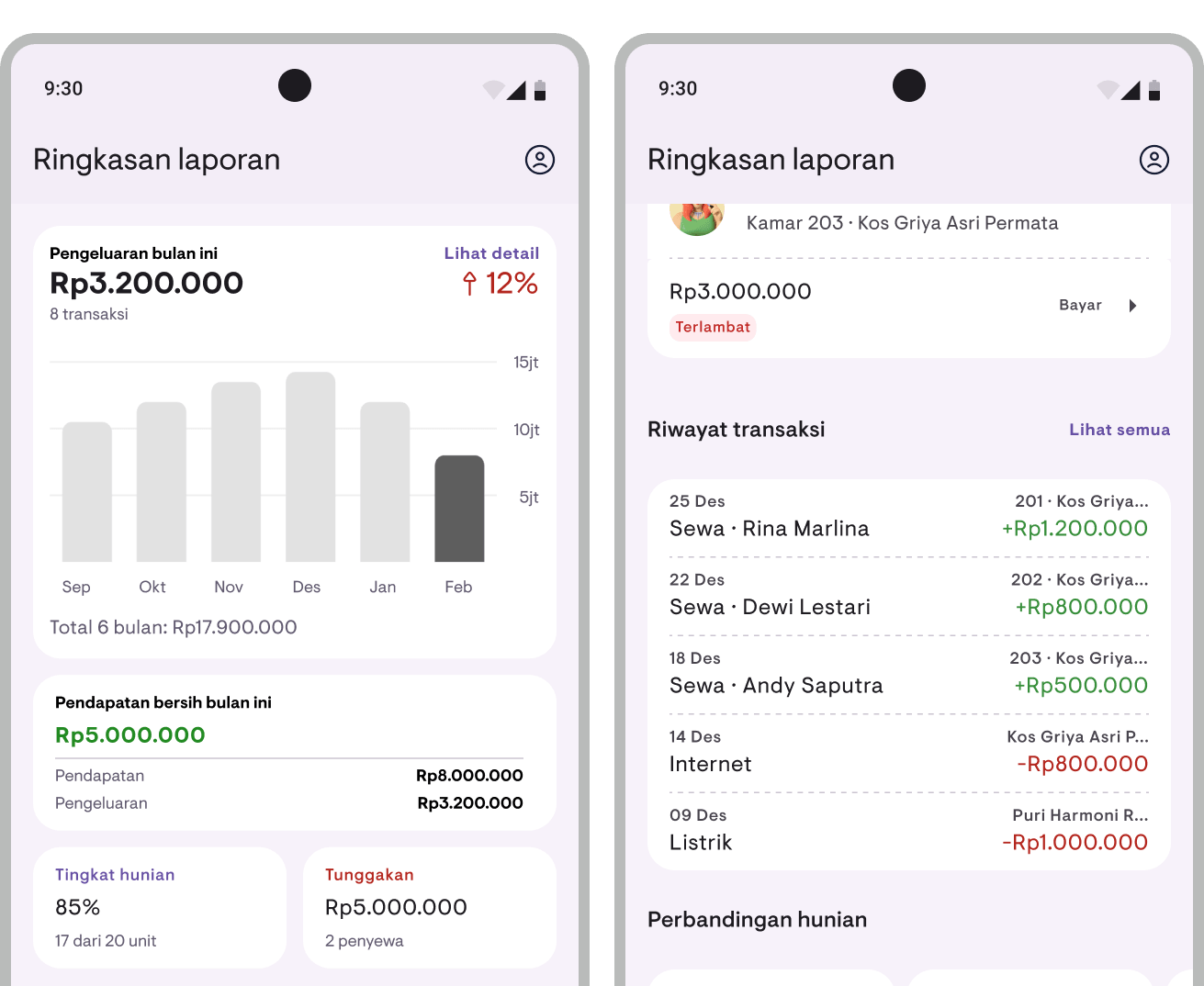
In the Report Overview, the expenses section shows:
- Total expenses for the current period
- Bar chart showing expense trends for the last 6 or 12 months
- Percentage comparison up/down vs the previous period
- Transaction count
Net income
Once you’ve recorded expenses, Net Income will appear in the Report Overview:
- Net income = Income − Expenses
- Green if positive, red if negative
- Income and expense breakdown shown below
Property comparison
Property comparison now also shows expenses and net profit per property.
Financial report details
On the Financial Report page (tap “View Report” in Report Overview), you’ll see:
- Expenses section — Breakdown of expenses by category, sorted largest first
- Net income section — Income minus expenses (appears if there are expenses)
- Per-property breakdown — Now includes expenses and net profit
For a complete financial report guide, see the Financial Reports user guide.
Cash flow report
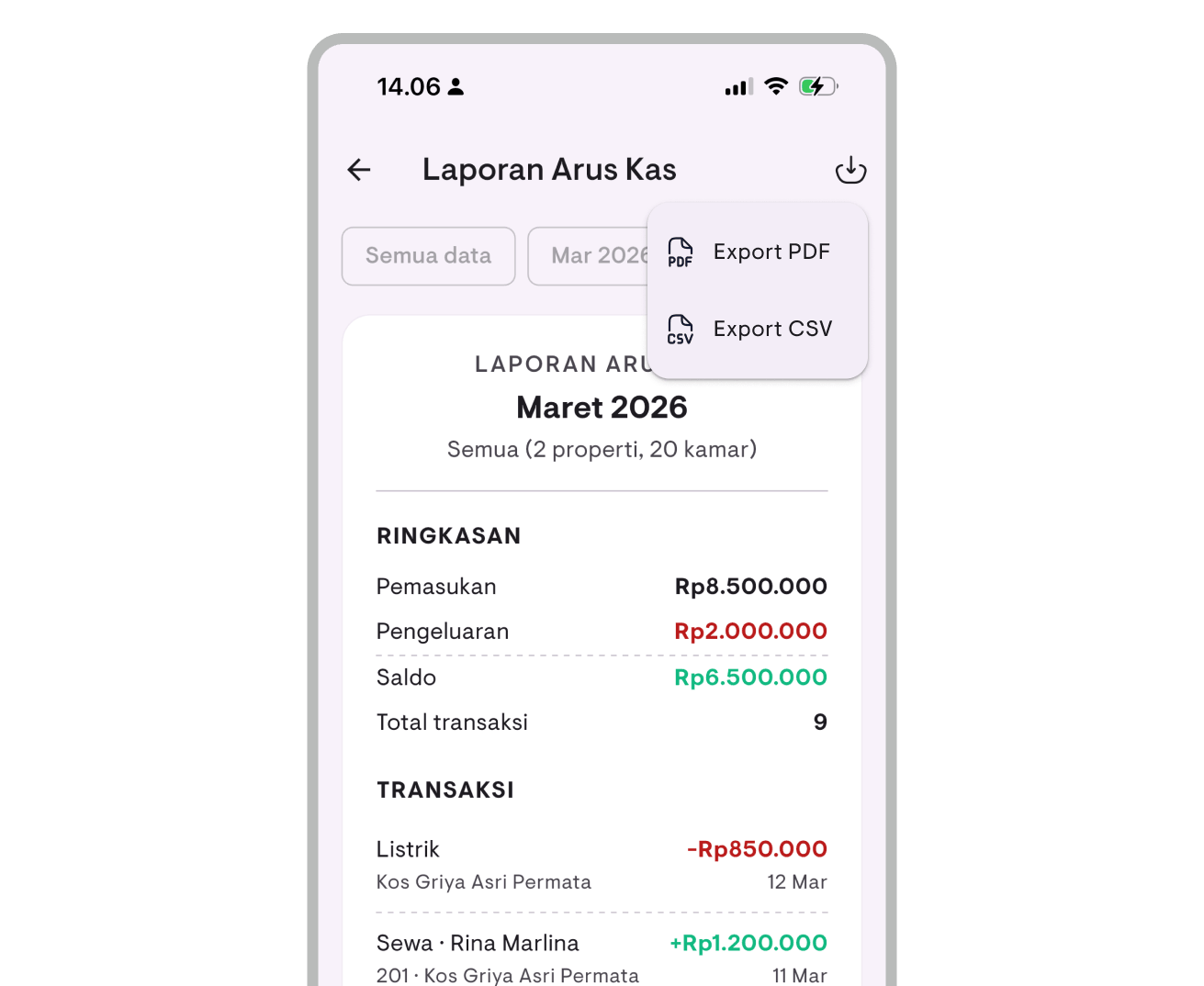
The Cash Flow Report shows all income and expense transactions in one list:
- Income shown in green with a ”+” sign
- Expenses shown in red with a ”−” sign
- Summary shows total income, total expenses, and net balance
Transaction type filter
- Tap the type filter chip at the top (first chip)
- Choose one:
- All data — Show all transactions
- Income — Income transactions only
- Expenses — Expense transactions only
- The summary will automatically adjust to match the selected filter
Exporting reports
All reports that include expense data can be exported in PDF and CSV format:
- Financial Report — Includes expense breakdown by category and net income
- Cash Flow Report — Includes all income and expense transactions
Tap the share button (PDF) or download button (CSV) on the report page.
Tips
- All expense features require a Pro subscription
- Use “Save & Add Another” when recording multiple expenses at once — faster than opening the form repeatedly
- Duplicate expenses are useful for recurring expenses (e.g., monthly electricity) — duplicate then change the amount and date
- Custom categories are great for specific needs not covered by built-in categories
- Data updates automatically in reports — every expense you record immediately appears in the Report Overview
- For a complete financial report guide, see the Financial Reports guide
Have questions or feedback? We'd love to hear from you. Email us.

Start managing for free today
Join other landlords who are already using Kamaru to manage their properties.

